Environment and camera
The Environment tab sets the room the part sits in, and the Camera tab sets the lens.
Studio offers six lighting setups. A metal part reflects its room, so with none it looks nearly black, and Flat shows the shape most clearly. Bloom lets light spill off faces with Emission turned up, and Shadows switches cast shadows.
Environment brightness sets how strongly the room, or an imported HDR, lights the model and shows in its reflections. An imported HDR lights the scene on its own, so the Key light is not added while one is chosen.
Under Backdrop and floor, Backdrop is the colour behind the model, and Floor set to Shadow catcher puts an invisible floor under the model that shows only its soft shadow, set apart for the Model and the Render workspace. It is off by default and is not drawn on the lightweight render. Path traced shows the floor's shadow too.
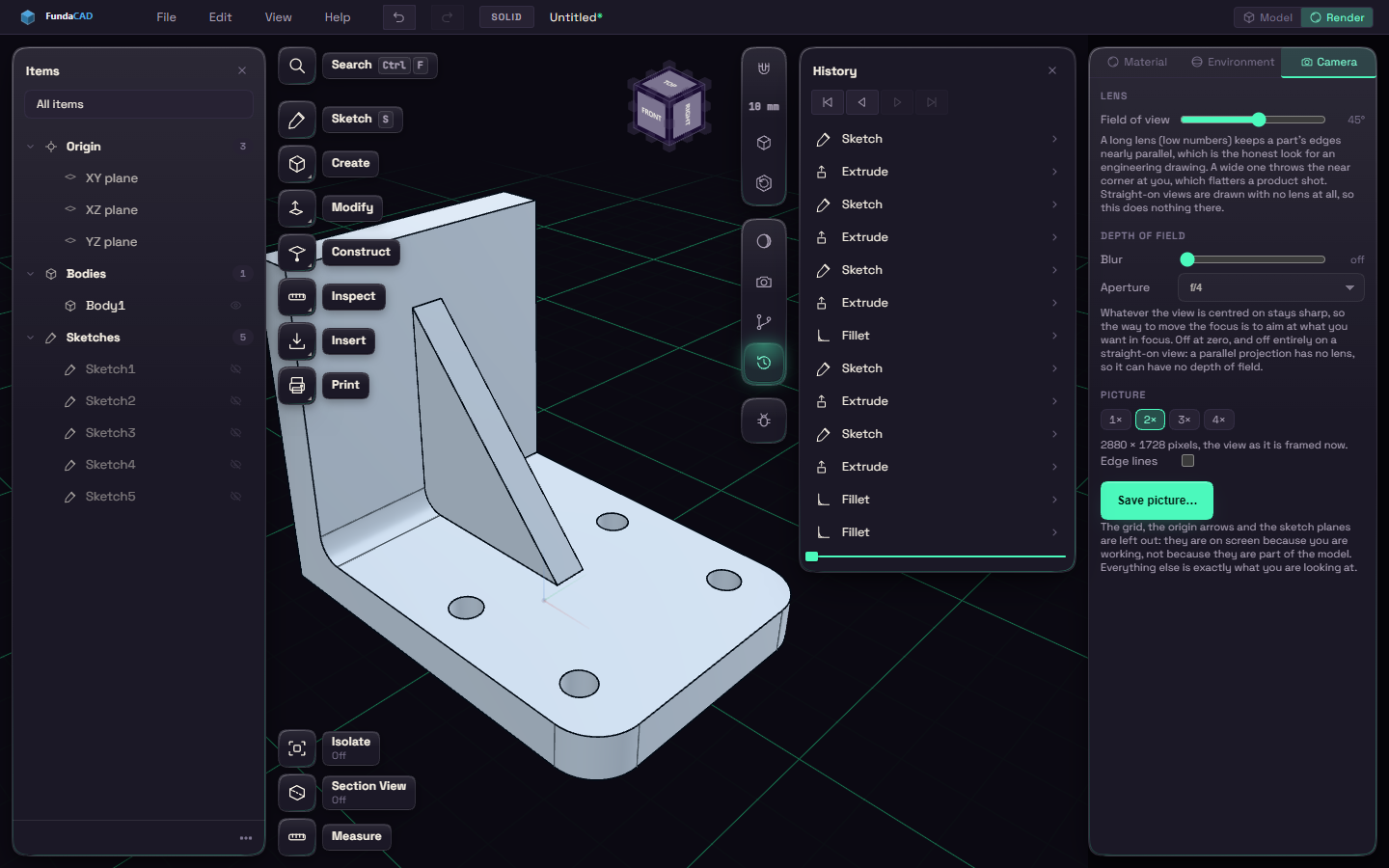
A low Field of view looks like a technical drawing, and a high one looks wider. To make an image, pick a size from 1x to 4x under Picture and press Save picture.