Export
Press Ctrl+E, or choose File > Export…, to send a part to a slicer or another program.
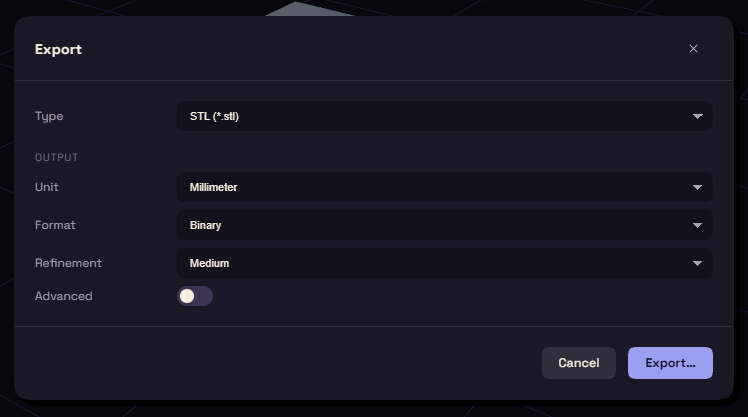
Pick a format
Type picks the format.
| Type | Use it for |
|---|---|
| STL, 3MF | A slicer. |
| STEP | Another CAD program, it keeps the exact surfaces. |
| GLB | A viewer. |
For a laser cutter, export a sketch or a flat face as DXF or SVG, see below.
Settings
- Bodies: with several bodies, All in one file or Each body as its own file. With bodies selected, you can export only those.
- Unit: for STL and 3MF. Leave it on Millimeter, since a slicer reads the numbers as they are.
- Format: for STL, Binary or ASCII.
- Refinement: how finely curves are cut into triangles. Medium suits most prints, High suits large smooth curves, Low suits quick tests.
- Advanced: sets the triangles by hand, and turns Refinement to Custom.
Press Export… and pick where the file goes. If a step failed, a warning names it, because its shape is missing from the file.
A sketch or a flat face as DXF or SVG
DXF and SVG draw one sketch or one flat face at true size, in millimetres.
- Right click a sketch in the Items card and choose Export as DXF… or Export as SVG…. For a face, right click it in the view and choose Export face as DXF… or Export face as SVG….
- Set Tolerance, then press Export….
A face keeps its holes. Lines, arcs and circles stay exact, other curves become short straight lines within Tolerance.