Linear, circular and rect pattern
Linear Pattern repeats a body along a line, Circular Pattern repeats it around an axis, and Rect Pattern repeats it in a grid. All three are under Modify on the rail.
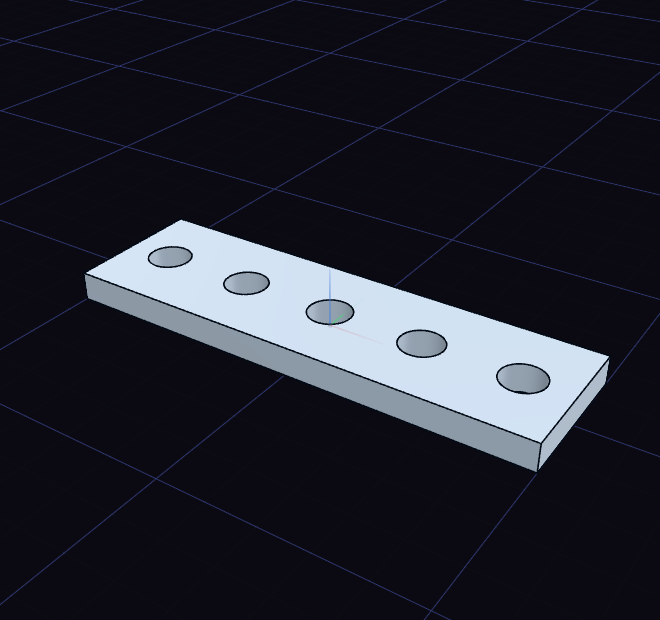
- Select what to repeat. A body repeats the whole body. A face that a feature made, such as the wall of a hole, repeats that feature, so one hole becomes a row. A step selected in the History card works the same way.
- Choose the pattern. Copies appear as a preview.
- Drag an arrow to set the spacing, and press [ or ] to change the count.
- Press Enter or click to apply, or Esc to cancel.
The count of copies includes the original. To go above 100, type it in the value box. Later, the step's rows in the History card change the count, the spacing or angle, and the direction.
Linear
The pattern starts with 4 copies along X, one body width apart, so they just touch. Drag the X, Y or Z arrow to choose the direction and the spacing. The value box has Spacing and Copies.
Circular
The pattern starts with 4 copies over a full turn about Z, through the origin.
- Press an arrow to turn about X, Y or Z, and drag around it to set the angle. It snaps to 15 degrees, Shift gives single degrees.
- Click an edge or face to turn about it.
- Press C to switch the axis between the origin and the middle of the part.
A full 360 degrees spreads the copies evenly. The value box has Angle and Copies, and a click off the part applies.
Rect
The pattern starts as a 3 by 3 grid in the ground plane. The X arrow sets the gap between columns, the Y arrow the gap between rows. The value box has Spacing X, Spacing Y, Copies X and Copies Y, and [ or ] changes Copies X.
To lay out holes in a sketch instead, use the sketch's hole patterns.