Reading the stress result
When a run finishes, the Results tab opens. The part is coloured from low stress in blue to high stress in red, and drawn bent, larger than it really bends. Set up takes you back to the inputs.
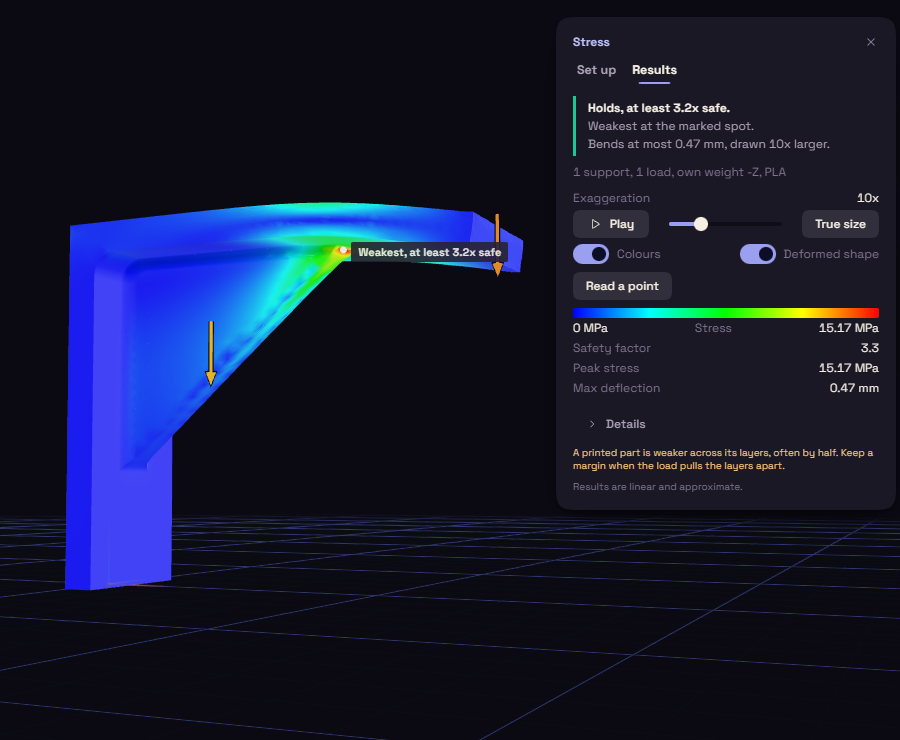
The verdict
The first line says in plain words how the part does. A coloured bar beside it is green, amber or red.
| Verdict | What it means |
|---|---|
| Holds, at least 3.2x safe. | The part holds with room to spare, at 1.5x or more. |
| Holds, at least 1.2x safe, but keep about 1.5x. | It holds, but under 1.5x the margin is thin. |
| Likely to fail at the marked spot. | The load is more than the part can take. A small overload is given in percent, such as about 3% more. |
| Nothing is stressed, check the loads. | The loads put no stress in the part. |
A pin in the view marks the weakest spot. The line under the verdict says how far the part bends.
When the weakest spot is a sharp inside corner or the edge of a support, the verdict says it is a rough reading. The stress there keeps growing as the mesh gets finer, and rounding the corner makes the part stronger.
The numbers
| Row | What it is |
|---|---|
| Safety factor | The yield strength divided by the peak stress. It turns red below 1. |
| Peak stress | The highest stress in the part, in MPa. |
| Max deflection | The furthest any point of the part moves. |
The colour bar gives the stress at each end, in MPa. Details opens the rest: the material and its yield, where the peak and the largest bend are, the loads and the reactions at the supports, and the mesh.
A printed part is weaker across its layer lines, so do not trust a safety factor barely over 1. The study is linear and approximate, use it to compare designs, not to predict when a part breaks.
Look closer
- Play swings the part between still and bent, Pause holds it where it is.
- The Exaggeration slider draws the bend larger. True size draws it as it really is.
- Colours turns the stress colours on and off. Deformed shape turns the bent shape on and off.
- Read a point, then click the part to read the stress and the bend there. Each reading is listed as Point 1, Point 2 and so on, with a button to remove it.
After a change
If you change the model or the setup after a run, Results says so. Run again brings it up to date.