Reference images
Put a photo or a drawing on a plane and sketch over it. For example, photograph a broken part on a cutting mat, scale the photo to a length you know and redraw the part on top.
Insert an image
- Choose Reference Image under Insert on the rail.
- Click a base plane, a datum plane or a flat face.
- Pick a PNG or a JPEG, up to 32 MB.
The image lands 100 mm wide and half transparent. It gets a row under Reference images in the Items card.
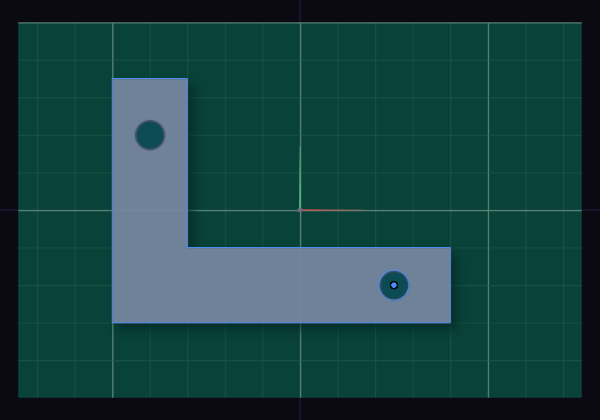
Scale it to a real size
- Click the image's row to open its panel, and press Calibrate.
- Click two points on the image whose distance you know, for example two marks 100 mm apart on the mat.
- Type that distance and press Enter. A unit works too, such as
4 in.
The image scales about the first point, so that point stays put. To set a size without two points, type a Width in the panel instead.
The panel
| Field | What it does |
|---|---|
| Width | the size, about the centre; the Height follows the picture |
| Angle | turns the image on its plane, in degrees |
| Opacity | how much of the model and the grid shows through |
| Flip X, Y | mirrors a photo taken from the other side |
| Lock | stops moving and calibrating by accident |
Shift drag the selected image to move it along its plane. Each drag, calibration and panel change is one step of Undo.
Show, hide and delete
- The row in Items has an eye to hide the image, a lock and a cross to delete it. Double-click its name to rename it.
- The Display popover hides every reference image at once.
- A sketch on the same plane draws over the image.
Files, pictures and exports
- The image is saved inside the .funda file. A row that says image not found means it is not in the file, so insert it again.
- Exports leave the images out. Save picture in the Render Camera tab keeps them only with Reference images ticked.
An image on a datum plane follows the datum when it moves. An image on a face keeps the plane the face had when you picked it.