Extrude
Extrude (E) pulls a closed shape from a sketch into a solid. It is the tool you reach for most.
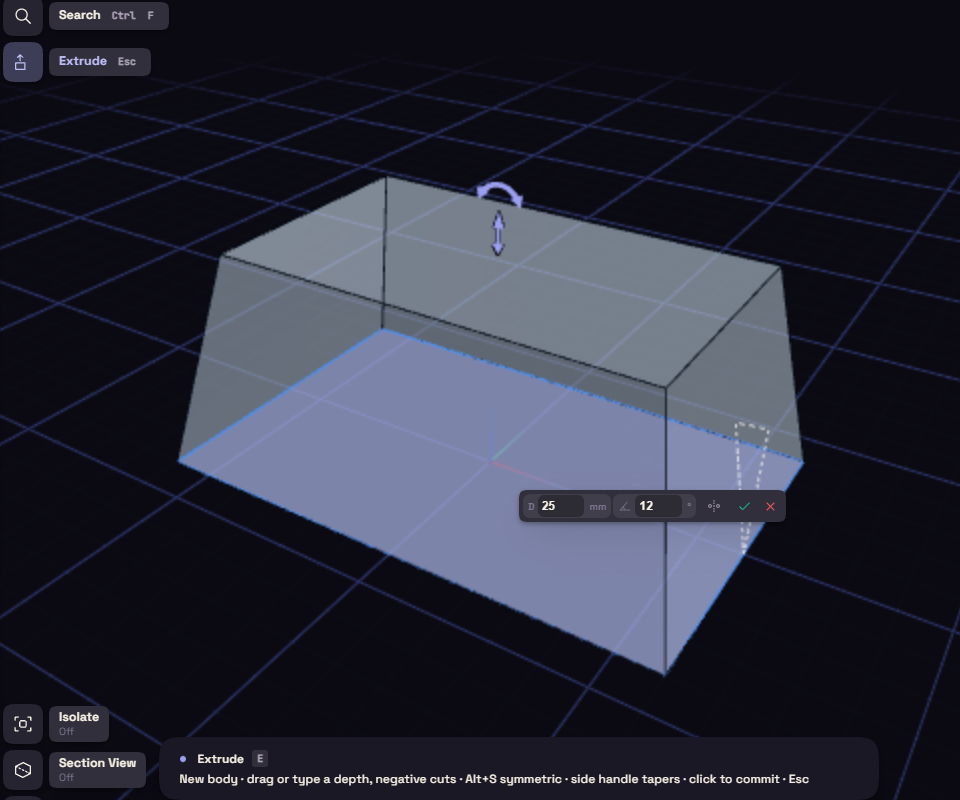
- Click the profile. Ctrl+click adds more areas.
- Drag the arrow, or type a depth.
- Press Enter.
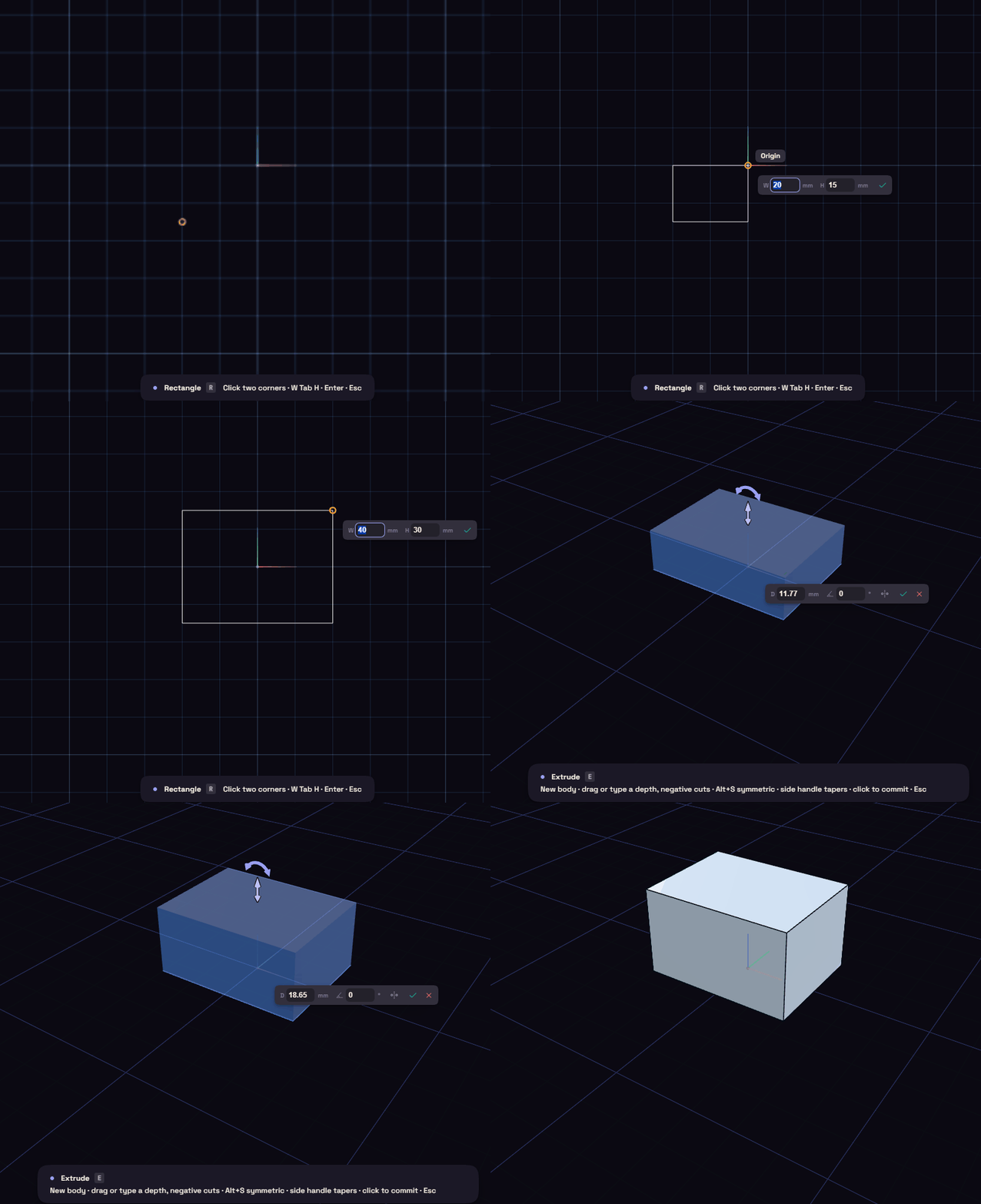
Dragging into material cuts and dragging away adds, so one rectangle makes a boss or a pocket. An outline with a hole inside, such as a washer, keeps the hole open.
Alt+S, or Symmetric in the box, extrudes the same depth both ways from the sketch. The handle beside the arrow tapers the walls up to 88 degrees, or type the taper in the Angle box.
With a flat face selected, E works as Press/Pull on that face.
Start and end
The step's rows change where the solid starts and stops after it is made.
- Start: Sketch plane, Offset, Face, Plane or Point.
- End: Distance, Up to face, Up to plane, Up to point or Through all. An Up to end ignores the distance, and End offset runs past the target, or stops short when negative.
- Two sided: the second side gets its own distance, taper and end.
- Operation: New body, Join, Cut or Intersect.
Thin walls
Pick a sketch of open lines and arcs in the Items card and press E, and Extrude makes a 2 mm wall along them instead of a solid.
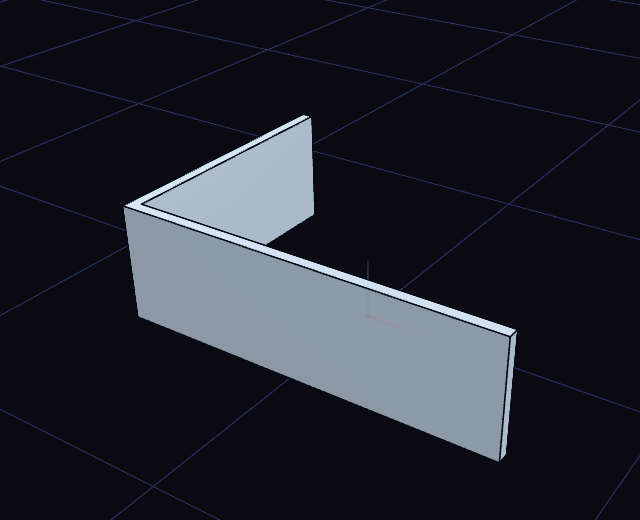
The Thin switch in the step's rows turns any extrude into a wall along its sketch's curves, so a rectangle becomes a hollow frame. Thickness sets the wall, and Wall side places it:
- Centered on the curves, the default.
- Inside: the enclosed side of a closed outline, the side an open chain bends toward, or the left of a straight line as drawn.
- Outside: the other side.
- Two sides: Thickness inside and Thickness 2 outside.
Corners are mitred, and walls that cross or meet become one body. Lines, arcs, circles, rectangles, polygons and slots can carry a wall, splines and ellipses not yet.