Home
Home is where FundaCAD starts. It lists your documents, starts new ones and takes you back to any version of a document.
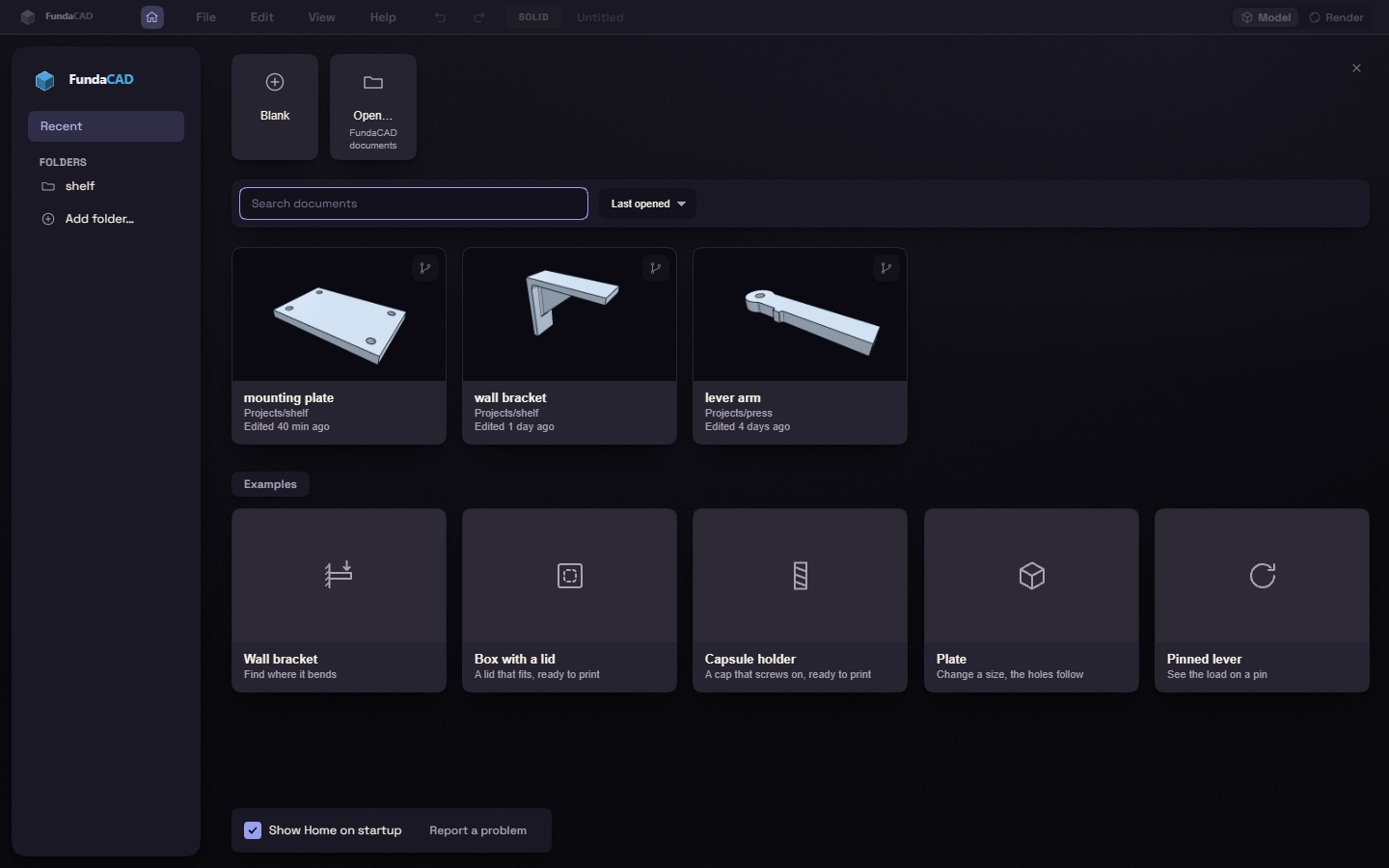
Start a document
- Blank starts an empty document.
- Open… opens a document on disk, or a STEP, STL or 3MF file.
- An example starts a document that already has parameters and a few steps. Examples says what each one shows.
Open a document
Click a card to open it. A card shows the model from its last save, its folder and when it was edited.
A card can carry a mark:
- Open: the document is open now.
- Not found: the file was moved or deleted. Click the card and choose Remove from list to take it off.
- Could not be read: the file is damaged or is not a document.
Right click a card for Open, Versions, Remove from list and Copy path. A card that is not found has no Versions, and a card in a folder has no Remove from list.
Find a document
Type in Search documents, or press Ctrl+F, to find a document or an example by name. The list next to it sorts by Last opened, Last edited or Name.
Add folder… lists the documents of one project folder and its subfolders.
Versions
The Versions button on a card lists the document's branches and saved versions.
- Open, next to a branch, opens the document on that branch.
- Restore brings a version back into the document, and Ctrl+Z undoes it.
- Open copy starts a new untitled document from a version, and the file stays as it is.
Leave Home
Press Esc to go back to your document, and choose File > Home to come back. Turn off Show Home on startup to start on an empty document.