Scale and mirror
Scale and Mirror sit under Move on the rail.
Scale
Scale resizes the most recent body by a factor, about the origin, so 2 doubles every dimension. It is handy for fixing the units of an import.
- Click Scale. The step is added at a factor of 1, so nothing changes yet.
- Set Factor in the step's rows in the History card.
- To stretch one axis only, set X factor, Y factor or Z factor instead.
The cubes on the Move gizmo resize a body too.
Mirror
Mirror reflects bodies across a plane and joins each one to its original. Model half of a symmetric part and finish it in one step.
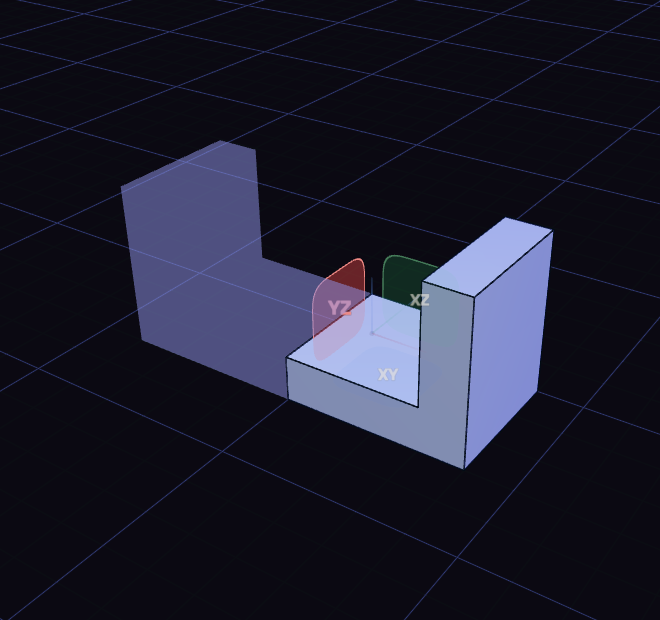
- Select the bodies first, or click them once the panel is open. They go into Objects, and a lone body is already there.
- Pick the Mirror plane: XY, XZ or YZ in the panel, a plane or datum plane in the view, or a flat face of the part.
- Check the see-through preview, then press Enter or click Mirror. Esc cancels.
The panel holds two lists, Objects and Mirror plane:
- Click a list to make it the one your clicks fill. Tab switches between them.
- Enter moves on to an empty list, then applies.
- Shift or Ctrl click adds a body while you pick the plane.
- Clear all empties a list, and the minus beside an entry removes it.
A flat face adds a datum plane named Mirror plane that follows the face.