Shortcuts
Press ? or use Help, Keyboard Shortcuts to see every key. On a Mac, use Cmd for Ctrl. Single letters are ignored while you type in a box.
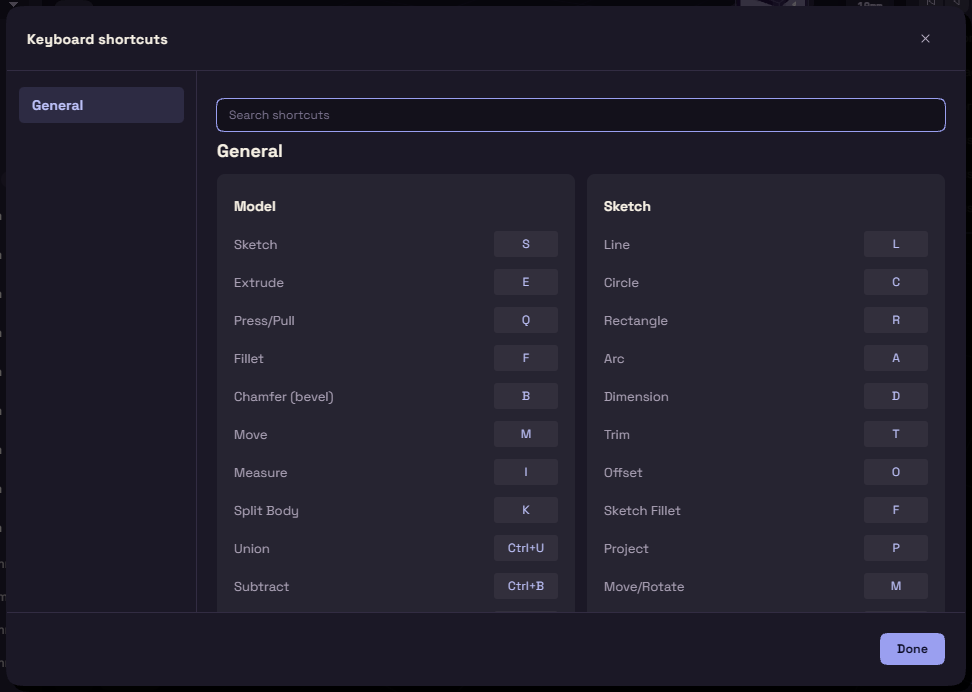
Change a key
- Press ? to open Keyboard shortcuts.
- Click the key next to a command. Search shortcuts finds it by name.
- Press the new keys, or Esc to cancel.
- If another command has those keys, pick Replace or Cancel.
Reset puts one key back, Reset all a whole page. A key marked fixed cannot be changed. A plugin with its own keys gets its own page.
Keys
| Key | In the model |
|---|---|
| S | Sketch |
| E | Extrude |
| Q | Press/Pull |
| F | Fillet |
| B | Chamfer |
| M | Move |
| I | Measure |
| K | Split Body |
| U | Clean Up |
| O | Offset Plane |
| Ctrl+U, Ctrl+B, Ctrl+I | Union, Subtract, Intersect |
| L, R, C, A, P | Start a sketch with Line, Rectangle, Circle, Arc or Project |
| H, Shift+H | Hide selected bodies, show all bodies |
| 1, 2, 3 | Select faces, bodies, or a body then its faces |
| X, Shift+X | See through, wireframe |
| Key | In a sketch |
|---|---|
| L, R, C, A | Line, Rectangle, Circle, Arc |
| D | Dimension |
| T | Trim |
| O | Offset |
| F | Sketch Fillet |
| P | Project |
| M | Move/Rotate |
| E, Q | Finish and start Extrude or Press/Pull |
| H, V | Horizontal, Vertical |
| I | Coincident or on curve |
| G, N | Tangent, Perpendicular |
| Shift+P, Shift+E, Shift+L | Parallel, Equal, Collinear |
| Shift+C, Shift+M, Shift+S | Concentric, Midpoint, Symmetric |
| Shift+F | Fix |
| Key | Anywhere |
|---|---|
| Ctrl+K or Ctrl+F | Command palette |
| Ctrl+Z, Ctrl+Y | Undo, Redo |
| Ctrl+S, Ctrl+Shift+S | Save, Save As |
| Ctrl+N, Ctrl+O, Ctrl+E | New, Open, Export |
| Ctrl+, | Preferences |
| Ctrl+Alt+S, Ctrl+Alt+H | Show or hide the items and the history |
| Home or F6, Shift+Home | Fit view, reset camera |
| Arrow keys | Turn or tilt the view 15°, 5° with Shift |
| Z, Shift+Z | Next and previous view mode |
| Shift+V | Clean view, hides every overlay until pressed again |
| Del | Delete the selected face or feature |
| Esc | Cancel the tool or clear the selection |
| Tab | While box selecting, choose what the box takes |
Mouse
| Mouse | What it does |
|---|---|
| Right drag | Orbit |
| Middle drag, Shift+right drag | Pan |
| Wheel | Zoom |
| Right click | Context menu |
| Left click | Select a body, then a face on it |
| Left drag to the right | Box select what is fully inside |
| Left drag to the left | Box select what the box touches |
| Shift+left drag | Box select, adding to the selection |
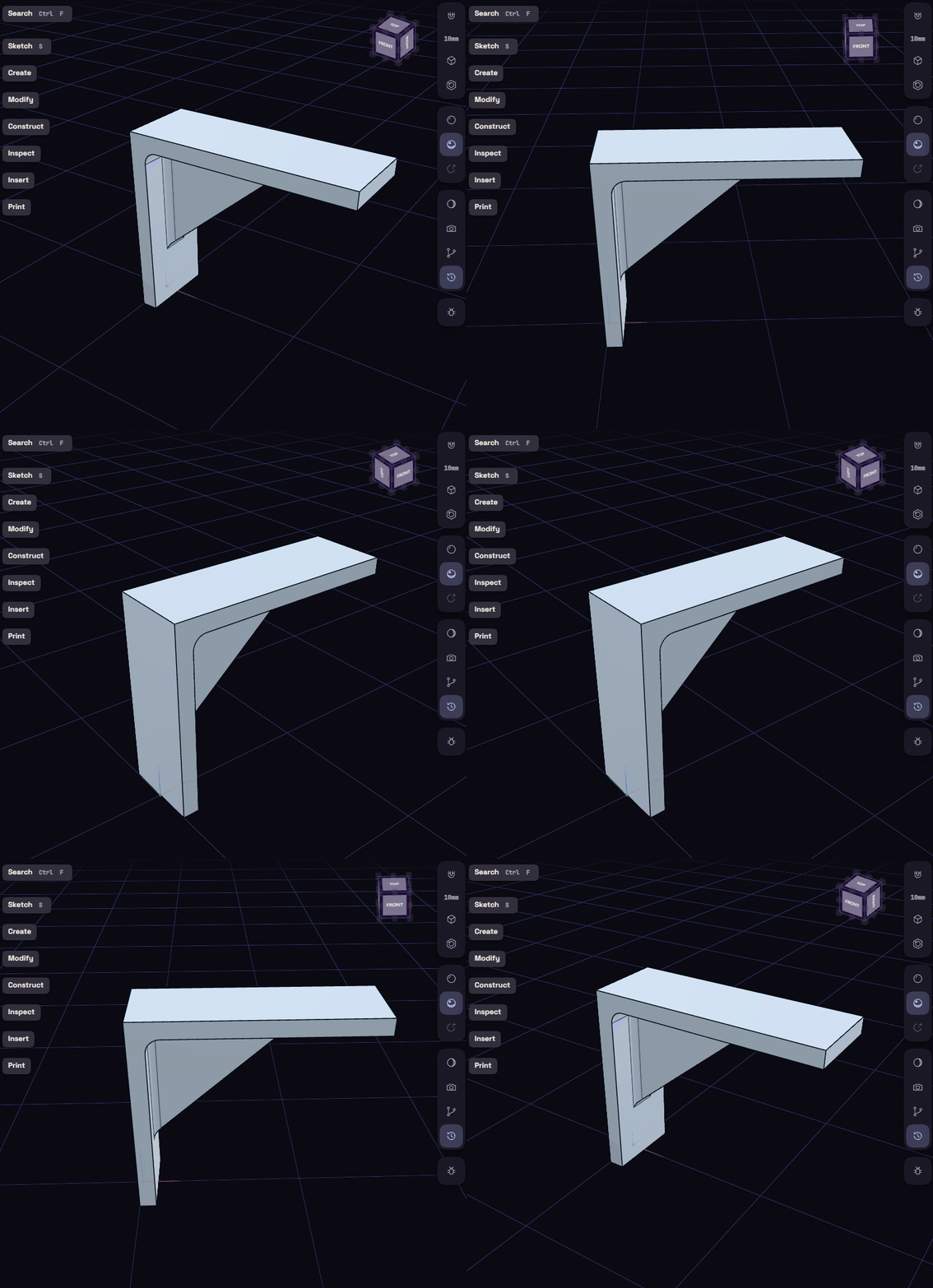
The Mouse and keys plugin can move orbit and pan to other buttons, see Plugins.