Environment and camera
The Environment tab of the Render workspace sets the room and the light around the part. The Camera tab sets the lens and saves a picture.
Pick a room
The Studio section of the Environment tab has six built in rooms. A metal is almost all reflection, so the room changes it the most.
| Room | Look |
|---|---|
| Studio | Neutral room, even light, the default |
| Soft box | One big light, product shot |
| Warm key | Warm light, cool shade |
| Dusk | Dark, with a bright rim |
| Bright room | High key, white walls |
| Flat | No reflections, easiest to read |
Light the part with your own HDR
- Under Your environments, press Import HDR... and pick an .hdr or .exr panorama. You can also drop the file on the window.
- Turn Rotation to swing the panorama round the part.
- Use Exposure to even out how bright the file itself is, in stops.
- Press Backdrop colour behind to show the panorama behind the model instead.
- Press Save as... and type a name to keep the whole look. Saved rooms have Rename and Delete.
A document lit by an HDR carries it, so it opens with the same light on another computer. An HDR lights the scene alone, with no key light.
Brightness, backdrop and floor
- Environment brightness: Amount sets how strongly the room lights the model and shows in its reflections, from 0.40x to 2.00x.
- Backdrop: the colour behind the model, Theme, Dark, Mid grey or Light.
- Floor: None, or Shadow catcher for an invisible floor that shows only the model's shadow. The Model and Render workspaces each keep their own floor, None by default. Performance mode has no floor.
Key light, bloom and shadows
- Key light: press Aim and drag the sun on the model to swing the light that casts the shadows, or type an Azimuth and Elevation. Enter keeps it, Esc puts it back. Reset returns to the default.
- Bloom: Amount spills light off faces with Emission turned up, none at zero. In the Path traced view bright highlights spill too.
- Shadows: Cast shadows adds a real shadow from the key light, off by default. It stays off in Performance mode and with an HDR.
For a slow computer
- Performance mode drops the heavy effects, glass refraction, a high pixel ratio and the extra lights from glowing parts. It turns on by itself on a weak GPU.
- Potato mode is the lowest quality, for slow or virtual machines, and includes Performance mode.
Denoise and Tracer on this tab set up Path traced, see View modes.
Set the lens
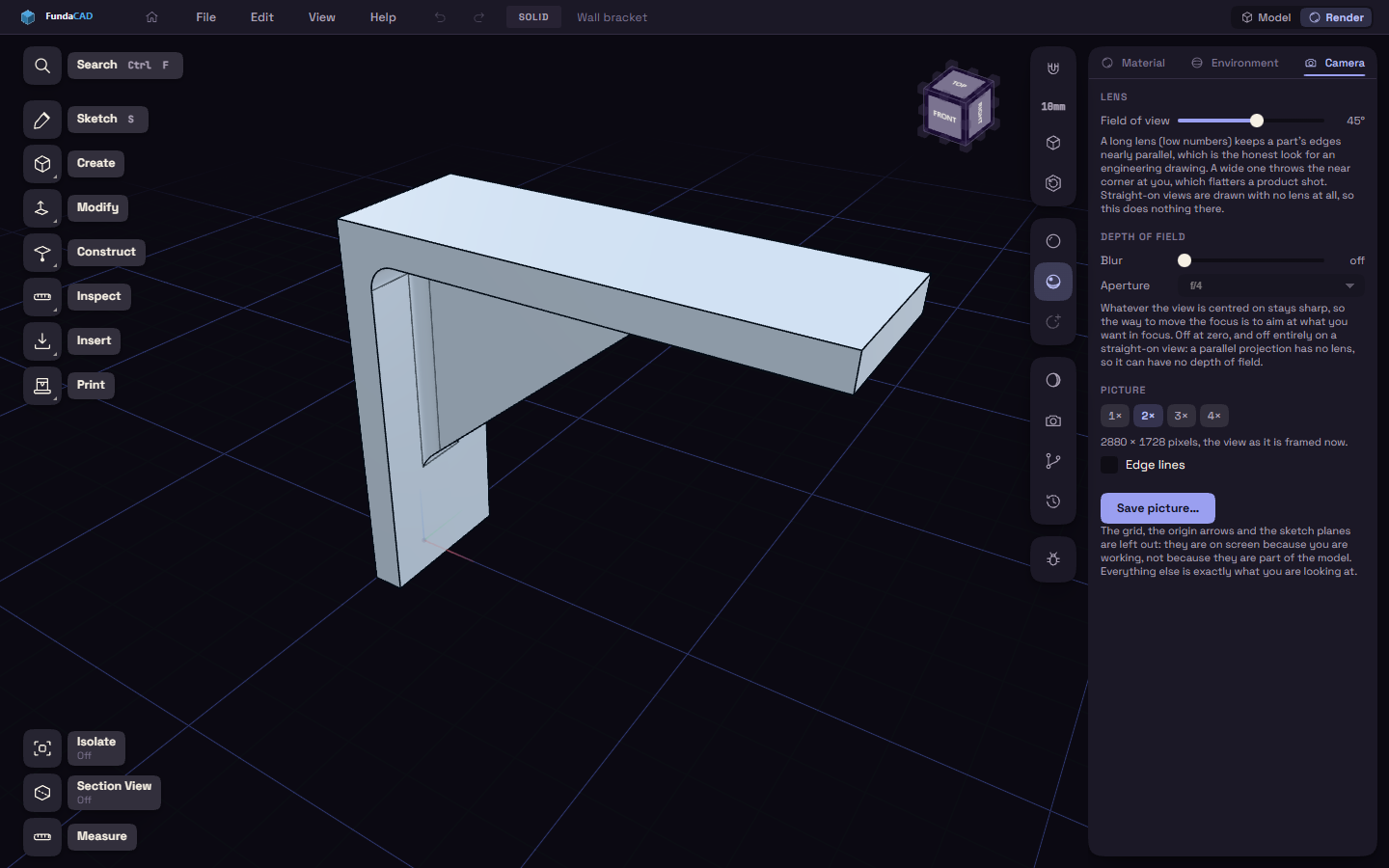
- Field of view runs from 15° to 70°, 45° by default. A low value keeps edges nearly parallel, like a technical drawing, a high one throws the near corner at you, like a product shot.
- Depth of field: Blur is off at zero. Turn it up, then pick an Aperture from f/1.4 to f/22. What the view is centred on stays sharp, so aim at what you want in focus.
A straight-on view has no lens, so neither setting does anything there.
Save a picture
- Frame the view as you want it.
- Under Picture, pick a size from 1× to 4× the view. The line below gives the size in pixels.
- For a traced picture, switch the view to Path traced (Z), see View modes. Once the picture starts clearing, Path traced and Samples show under Picture. Leave Path traced on and pick Samples: 64, 256 or 1024.
- For a plain picture, stay in Realtime or Matcap, or turn Path traced off. Edge lines adds the outlines, and Reference images keeps your reference images in, when the model has some.
- Press Save picture… and choose where the file goes.
While it traces, the button counts the samples, press it again to cancel. The grid, the origin arrows and the sketch planes are always left out.