Constraints
A constraint is a rule the sketch keeps true, such as "this line stays horizontal". Change one size and everything tied to it moves with it.
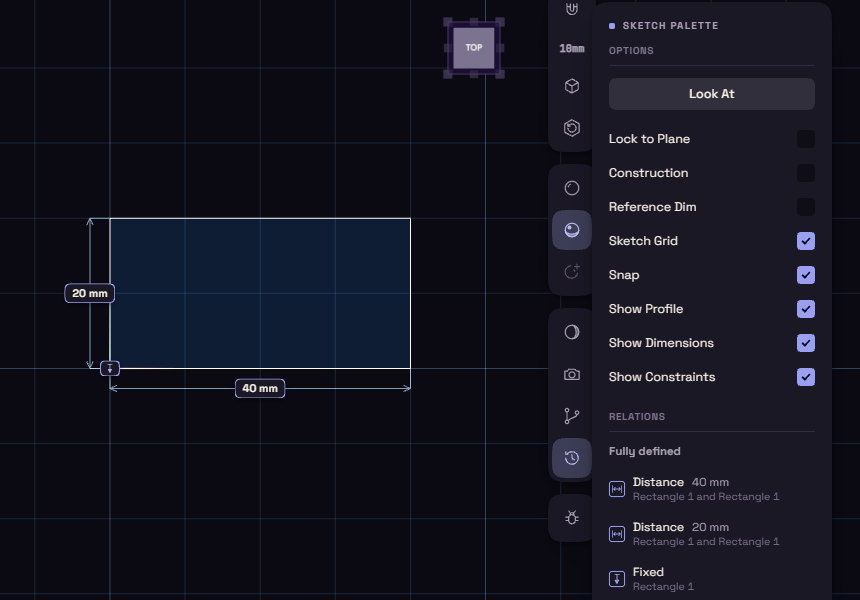
The colour of the curves tells you how free the sketch still is:
- Blue: the sketch can still move.
- White: the sketch is fully defined, nothing can move.
- Red: two rules disagree.
Add a constraint
Some come for free as you draw a line. With both ends on the grid, a line whose ends share a grid row or column is made horizontal or vertical. With an end off the grid, as with Snap off or Ctrl held, a line within about 3 degrees of horizontal or vertical is made exact.
- Open Constrain on the rail and pick one, or press its key.
- Click the shapes the hint line asks for.
- Keep clicking to add more, press Esc to stop.
With shapes already selected, a constraint that fits them applies at once. Right-click a selection to see only the constraints that fit it.
| Constraint | Key | Click |
|---|---|---|
| Horizontal | H | a line |
| Vertical | V | a line |
| Parallel | Shift+P | two lines |
| Perpendicular | N | two lines |
| Equal | Shift+E | two lines, or two circles or arcs |
| Tangent | G | two curves |
| Coincident | I | two endpoints |
| Concentric | Shift+C | two circles or arcs |
| Midpoint | Shift+M | a point, then a line |
| Collinear | Shift+L | two lines |
| Symmetric | Shift+S | two endpoints, then the axis |
| Fix | Shift+F | a point or a circle centre, to lock it |
The Relations list
The palette lists every rule under Relations, one row each. It shows while Show Constraints is on.
- The line on top says how free the sketch is, such as "2 degrees of freedom" or "Fully defined".
- Hover a row to light up what it holds, click it to select those shapes.
- Click the x on a row to delete that constraint.
- A red icon marks a rule that conflicts, an amber one a rule that repeats another.
- A dashed icon marks ends held only by where they sit. There is nothing to delete there.
Loose ends
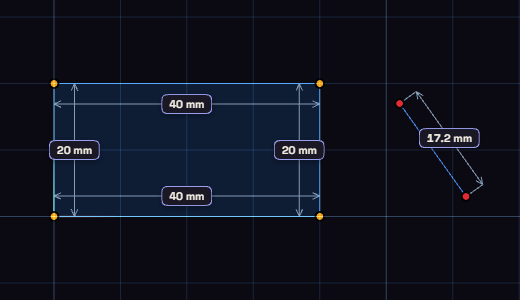
A sketch that will not extrude usually has a gap. While you sketch, dots mark the ends that keep it open:
- Red dot: an end that touches nothing.
- Amber dot: an end that meets another curve, but no rule holds it there.
Tie Loose Ends, next to Constrain, ties every amber end in one step you can undo. When red ends sit close together, up to a tenth of the sketch's size and at most 10 mm, it offers Close gap to tie them across. Farther apart, draw a line to close them.
When Extrude finds no closed profile, its message offers the same buttons. On a small gap, press Extrude again to get a thin wall along the lines instead.