Parameters
A parameter is a number with a name. Make one called width, use it in three places, and change it once.
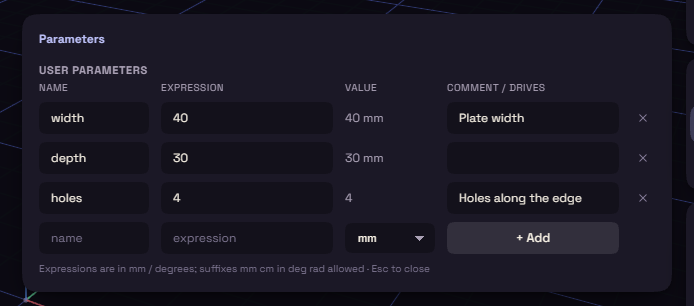
Add one
- Pick Parameters under Modify on the rail.
- In the bottom row, type a name and an expression, and pick mm, deg or unitless.
- Press + Add.
Use one
Type the name where a number goes, such as width, in a step's values in the History card, on a sketch dimension or in the Parameters dialog. The value is then tied to the parameter, and changing the parameter rebuilds every step that uses it.
The value box of a running tool, such as Extrude, takes no names. Type the number there, then the name in the step's row in the History card.
A tied value shows fx: in front of it, and hovering its row shows the parameter and its value. Dragging a handle will not overwrite it.
Edit and delete
- Change a name or an expression right in its row. A new name follows everywhere the parameter is used.
- The comment is a note for yourself.
- The x at the end of a row deletes the parameter, unless something still uses it. Hover the x to see what.
Model parameters
Typing a name or a formula into a step's value makes a model parameter for it, named d1, d2 and so on. They are listed under Model Parameters with the value each one drives, and go away with their step.