Press/Pull
Press/Pull (Q) moves a face in or out, and the body grows or shrinks with it. It is the quickest way to make a wall 2 mm thicker.
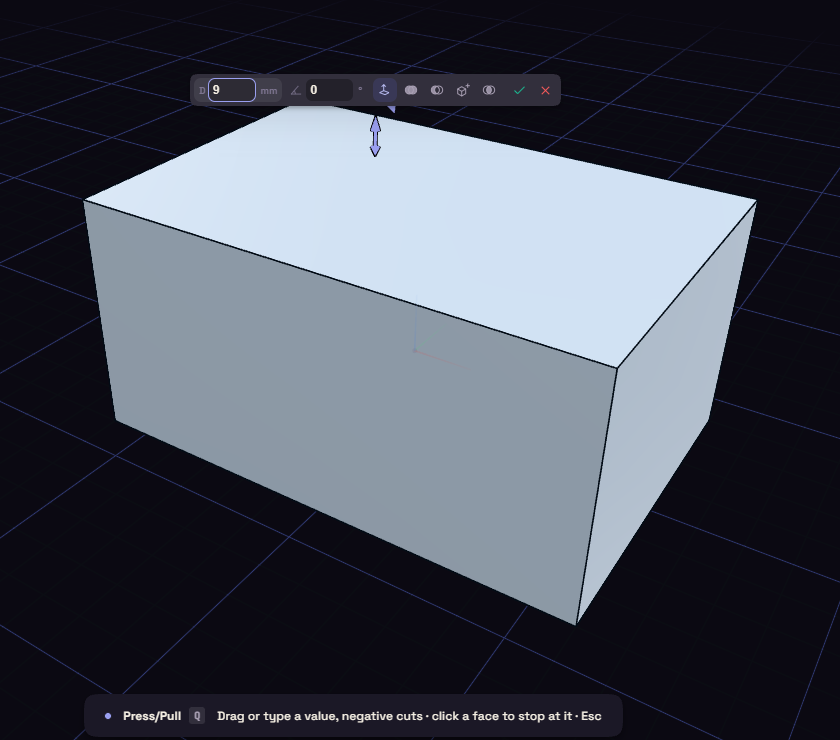
- Click a flat face. Ctrl+click adds more faces of the same body.
- Drag the arrow, or type a distance. A negative distance cuts.
- Press Enter, or click empty space.
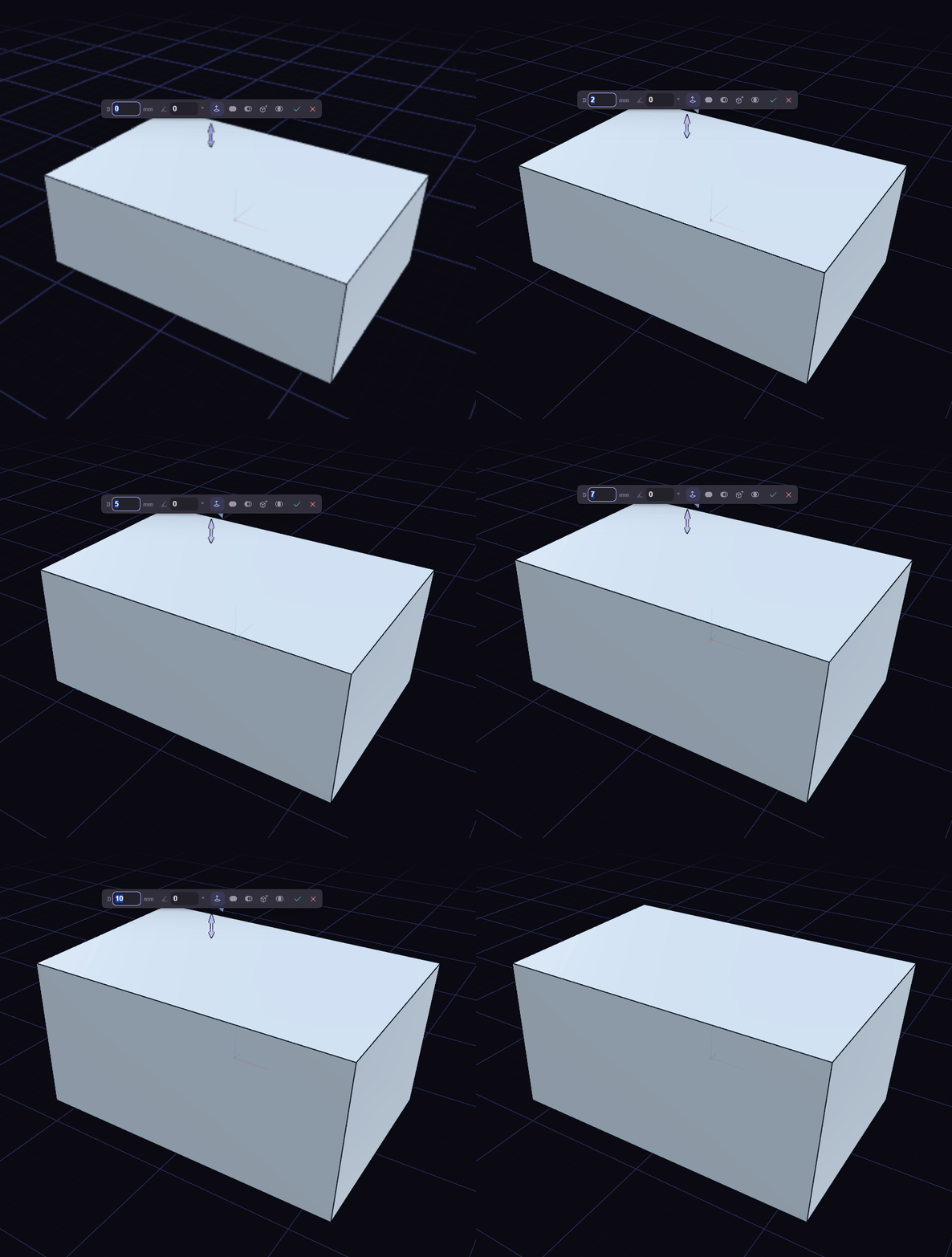
Letting go of the arrow does not finish the push, so you can still change the box before Enter. Esc drops it.
Stop at a face
Click another face instead of empty space, and the face moves up to it. T does the same: press it, then click the face to stop at.
Box options
- Angle slopes the sides as the face moves, like a draft. The curved handle beside the arrow drags it.
- Auto grows or shrinks the face. Join, Cut, New and Intersect extrude it instead and combine it with any body it reaches.
- Along axis shows on the end of a hole. It slides the end down the hole, so the hole gets deeper. Along normal offsets the face.
Round faces
On a round face, such as the wall of a hole, the drag resizes it. The box starts at the size the face has now.
- Pick R, Diameter or Offset in the box, or type r2.5, d5 or +0.5.
- Shrinking a full round under a tenth of its radius removes the face when you press Enter.
- Tangent faces follow, on by default, moves the faces that run smoothly into it too, so a slot narrows as one. Off, a size they cannot meet is refused.