Fasteners
Fasteners is a library of standard screws, bolts, nuts, washers and heat-set inserts, metric and inch. It is on by default, under Insert on the rail.
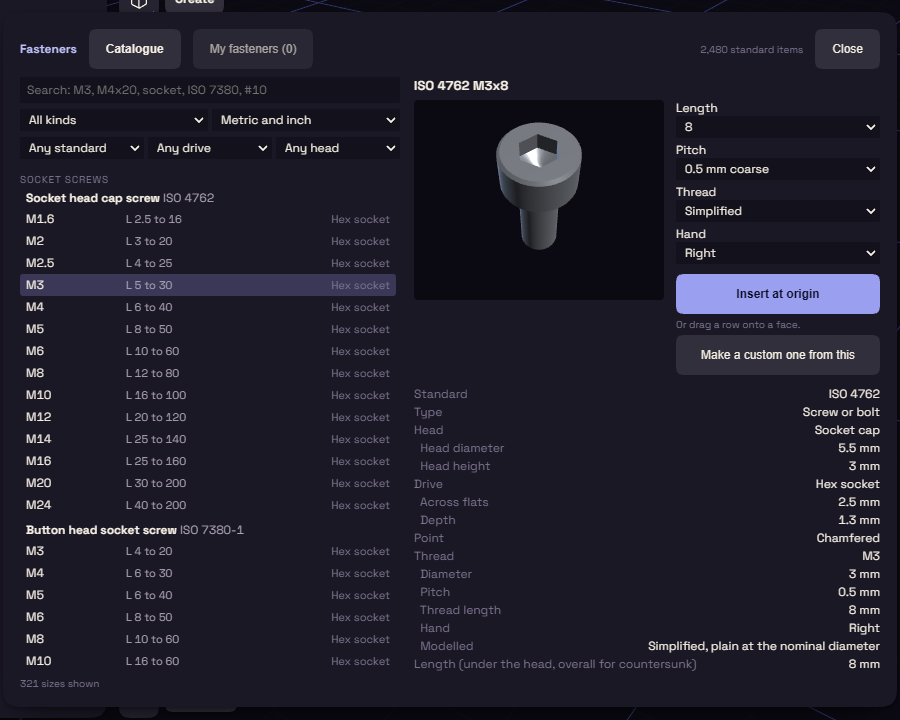
Placing a fastener
- Pick Fasteners and search the Catalogue, for example
M4x20orsocket. - Click a row to see its preview and specs, with the clearance hole and the tap drill.
- Set Length, Pitch, Thread and Hand if you need others. Drive shows when the screw comes with more than one.
- Select a flat face and press Insert on selected face, or drag the row onto a face.
With no face selected, the button reads Insert at origin. Thread Simplified is a plain cylinder that builds fast, and Modelled helix builds a real thread for close-ups.
The fastener becomes an ordinary body in your document. Right-click it and pick Fastener Specs... to read its sizes again.
Your own fasteners
The My fasteners tab holds your own. New fastener makes one, and Make a custom one from this starts from the size you picked in the Catalogue. Import JSON and Export JSON move them between computers.
Standard Thread
Standard Thread, also under Insert, threads a round face to a standard size.
- Pick Standard Thread and click a shaft or a bore.
- The panel opens on the nearest size, with a line saying how far your face is from it, for example
M6, 0.10 mm over tap drill. - Change System or Size if you want another. System offers ISO metric, UNC, UNF, Trapezoidal Tr and ACME.
- Press Add.
The panel also has:
- Bore drawn at: Tap drill cuts the thread into the bore, Nominal adds it inside a bore drawn at the nominal size.
- Hand and Starts: Left and up to 4 starts, for lead screws.
- Print fit: opens the thread by Clearance, 0.2 mm all round, so a printed screw turns in its nut.
Double-click the thread in the History to open the panel again.