Section
Section cuts the model open with a plane so you can see inside.
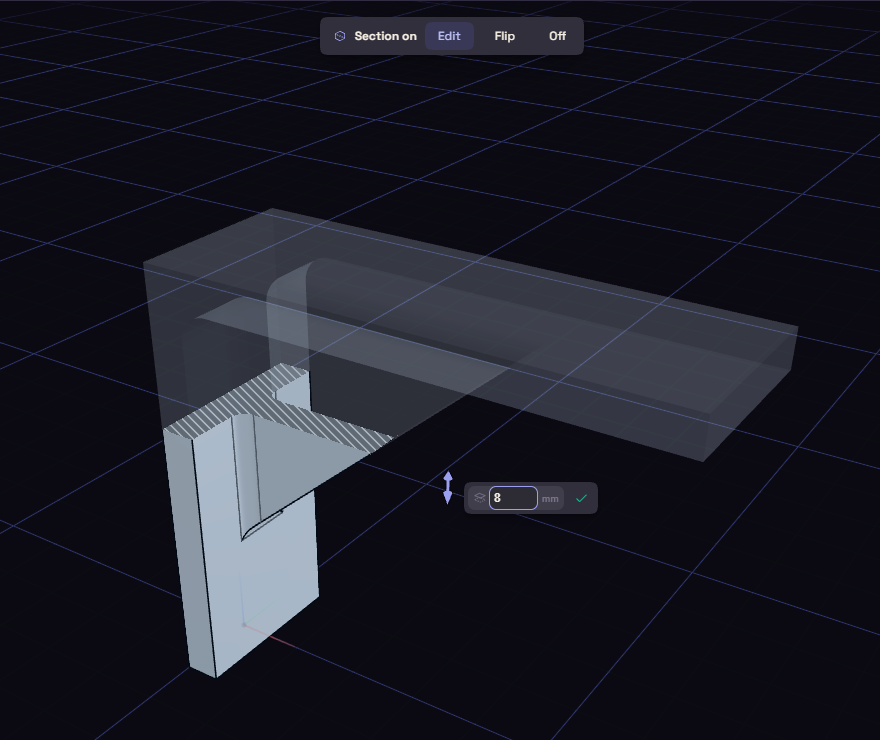
Cut the model
- Pick Section under Inspect.
- Choose what to cut along: Face or plane, then click one, or the Z, X or Y axis. Z gives a horizontal cut.
- Drag the handle, or type an offset in the value box.
- Press Enter, the check or Esc to keep the cut.
While the handle shows, and before you type an offset, two keys change the cut:
- F flips which half is kept.
- G changes how the cut half shows: hidden, faint, soft or strong. It starts at soft.
While the cut is on
The handle goes away and the cut stays while you orbit, select, measure and use other tools.
- A click only reaches what the cut keeps. A box select still takes both halves.
- A click on the hatched cut surface selects its body, as there is no face there to pick.
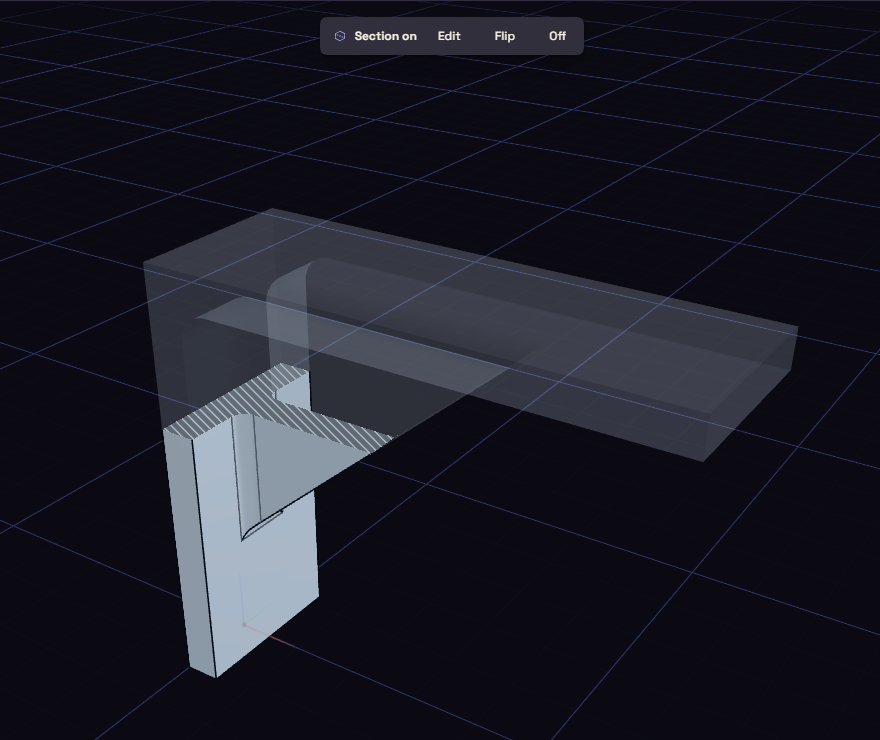
A chip at the top of the view says Section on:
- Edit brings the handle back.
- Flip keeps the other half.
- Off removes the cut. Section View on the rail does the same.
The cut is saved with the document and is back when you open it. Undo leaves it alone, as the cut is a view and not part of the model.