Stress
Stress shows how a part bends and where the material works hardest, so you can tell whether a bracket or clip will hold.
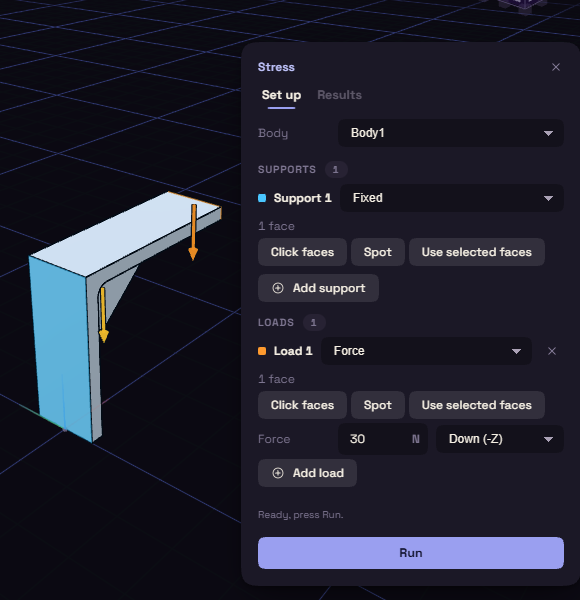
- Under Inspect, open Analyze and pick Stress. The Set up tab opens.
- Pick the part under Body. A selected body, or the only one, is picked for you.
- Under Support 1, press Click faces and click a face that is held, such as the inside of a screw hole.
- Under Load 1, press Click faces, click the face that is pushed, and type the Force in newtons.
- Pick a Material, such as PETG, and press Run.
The answer opens in the Results tab, see Reading the stress result. The setup is saved with your file.
Placing supports and loads
Each support and load has three buttons.
- Click faces: click a face to add all of it. Shift click adds more, Esc stops.
- Spot: click the body to place a round spot, for a local support or load. Set its Radius, or drag its rim in the view.
- Use selected faces: takes the faces you already selected in the view.
Add support and Add load add more rows. The colours of the rows match the marks in the view.
Supports
A support is where the part is held. Pick its type in the row.
- Fixed: held every way.
- Pinned: for a hole or a pin, held in place but free to turn about its axis.
- Slider: held against the face, free to slide along it.
Loads
A load is a Force in newtons or a Pressure in MPa. A new load starts at 100 N.
- Direction starts at Into the face. You can also pick an axis, such as Down (-Z), or Custom vector and type X, Y, Z.
- Drag a load's arrow in the view to change its size and direction. It snaps to each axis and to Into the face.
- Turn on Own weight to add the part's weight, and pick which way is down.
Material and more options
Material lists PLA, PETG, ABS, ASA, PA12 nylon, PC, aluminium 6061-T6 and steel S235, and starts at PLA. Pick Custom to type your own E, Poisson's ratio, Yield and Density.
More options holds two settings.
| Setting | What it does | Starts at |
|---|---|---|
| Mesh size | The size of the pieces the part is split into. Smaller is finer and slower. | auto |
| Refinement | Standard makes the mesh finer where the stress is high and solves again. Fine finds the peak more closely and takes longer. Off uses one even mesh. | Standard |
While it runs, the panel shows Analysing… with a Cancel button.