Surface Texture
Surface Texture puts a pattern on a face or a body as real shape, so your slicer receives what you see. It is on by default, under Modify on the rail.
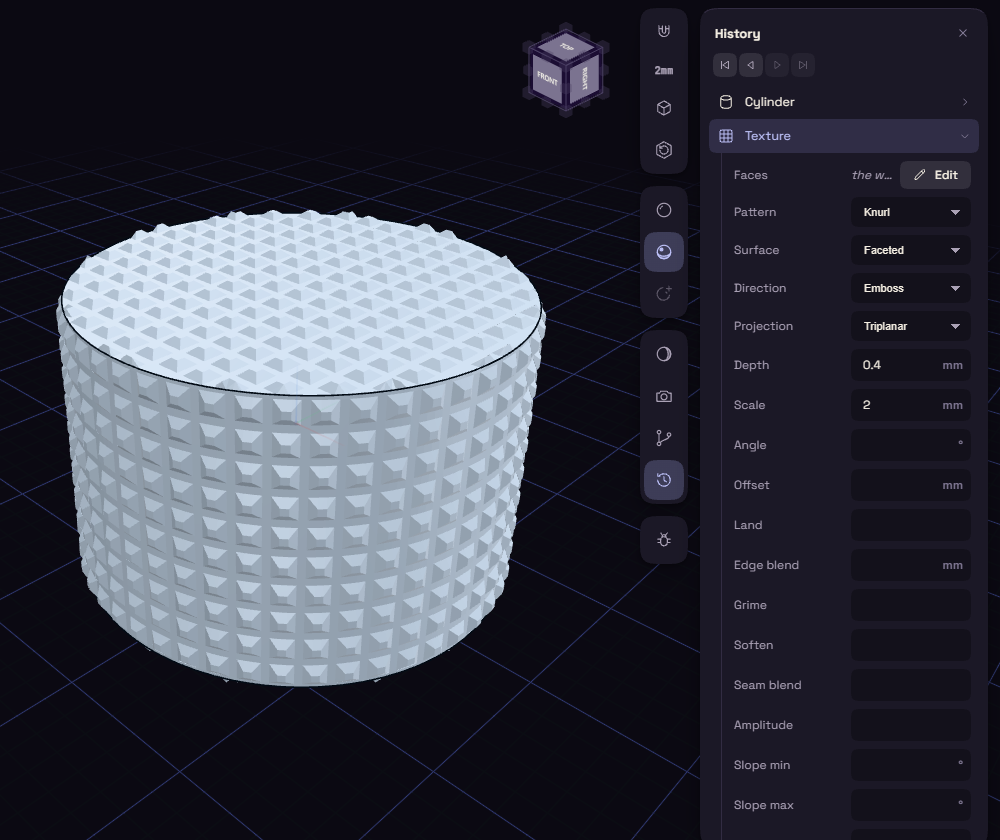
Adding a texture
- Pick Texture.
- Click the faces to texture, for example the side of a knob, or press Whole Body and click the body.
- Open Kind and pick a pattern, for example Knurl, and set a small Depth.
- Press Add.
Double-click the step in the History to change it later. Delete the step to get the smooth surface back.
Settings
- Kind (Pattern in the History): patterns such as Knurl, Hex, Waves, Ribs, Brick, Carbon fibre, Voronoi, Perlin noise, Leather and Grip. Heightmap turns a picture into height, light is high.
- Depth and Scale: the size of the pattern, 0.4 mm and 2 mm to start.
- Direction: Out (emboss), In (deboss) or Both, called Emboss, Deboss and Symmetric in the History.
- Print color: gives the pattern its own colour from the palette, for multicolour prints.
A heavy texture can slow the model. Mesh mm under Advanced makes it coarser.