3D mouse
If you have a 3D mouse, this plugin lets you fly around the model with its puck. It is on by default and adds its items to the View menu.
The puck only changes the view, never the model. Pick how it moves in the View menu.
- SpaceMouse: Object Mode turns the view the way you would turn a part held in your hand. This is the default.
- SpaceMouse: Camera Mode flies the camera around the part instead.
Button 1 fits the view and button 2 returns to the isometric view.
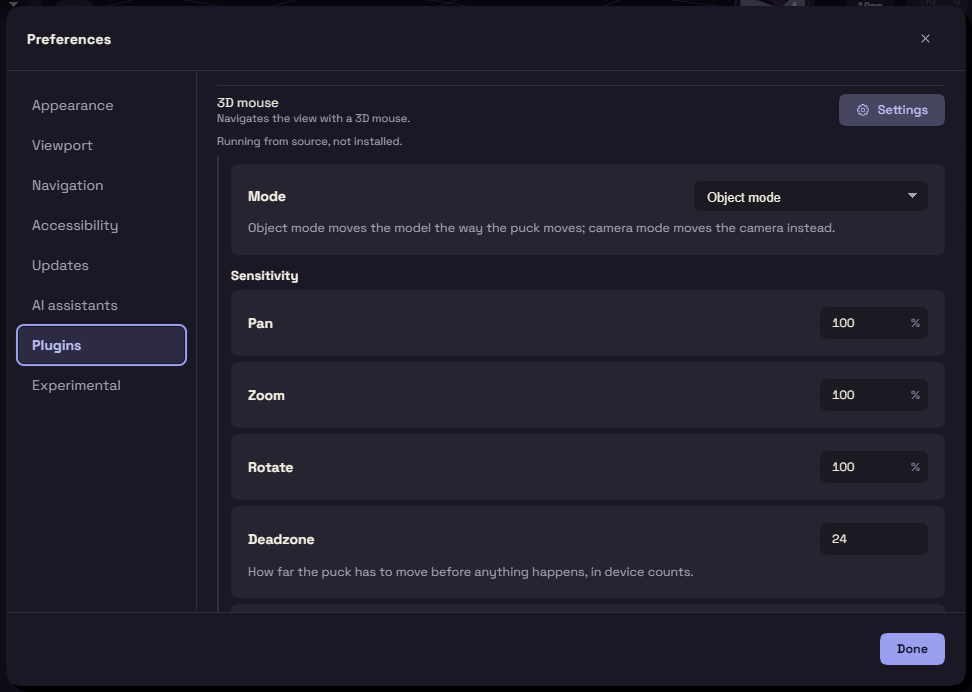
View, 3D Mouse Settings opens its settings.
- Mode picks Object mode or Camera mode, as the View menu does.
- Pan, Zoom and Rotate set the speeds.
- Deadzone: raise it if the view creeps.
- Cross-axis filter stops a hard tilt from also zooming.
- Axis mapping picks which puck motion does what, or inverts it. Live axes shows which bar moves as you push.
Linux
With spacenavd running, FundaCAD reads the mouse through it and needs nothing else. Your spnavcfg settings apply here too.
Without it, FundaCAD reads the device itself and needs permission. If it finds the mouse but cannot read it, a message says so. Fix it one of two ways.
- Start
spacenavdwithsudo systemctl enable --now spacenavd. - Install the device rule with
sudo sh packaging/setup-spacemouse.shfrom the source folder, then replug the mouse.
The deb and rpm packages install the rule for you.