Materials
Materials change how a part looks on screen, not how it prints. Use them to tell parts apart and to make a picture. A GLB export carries them along.
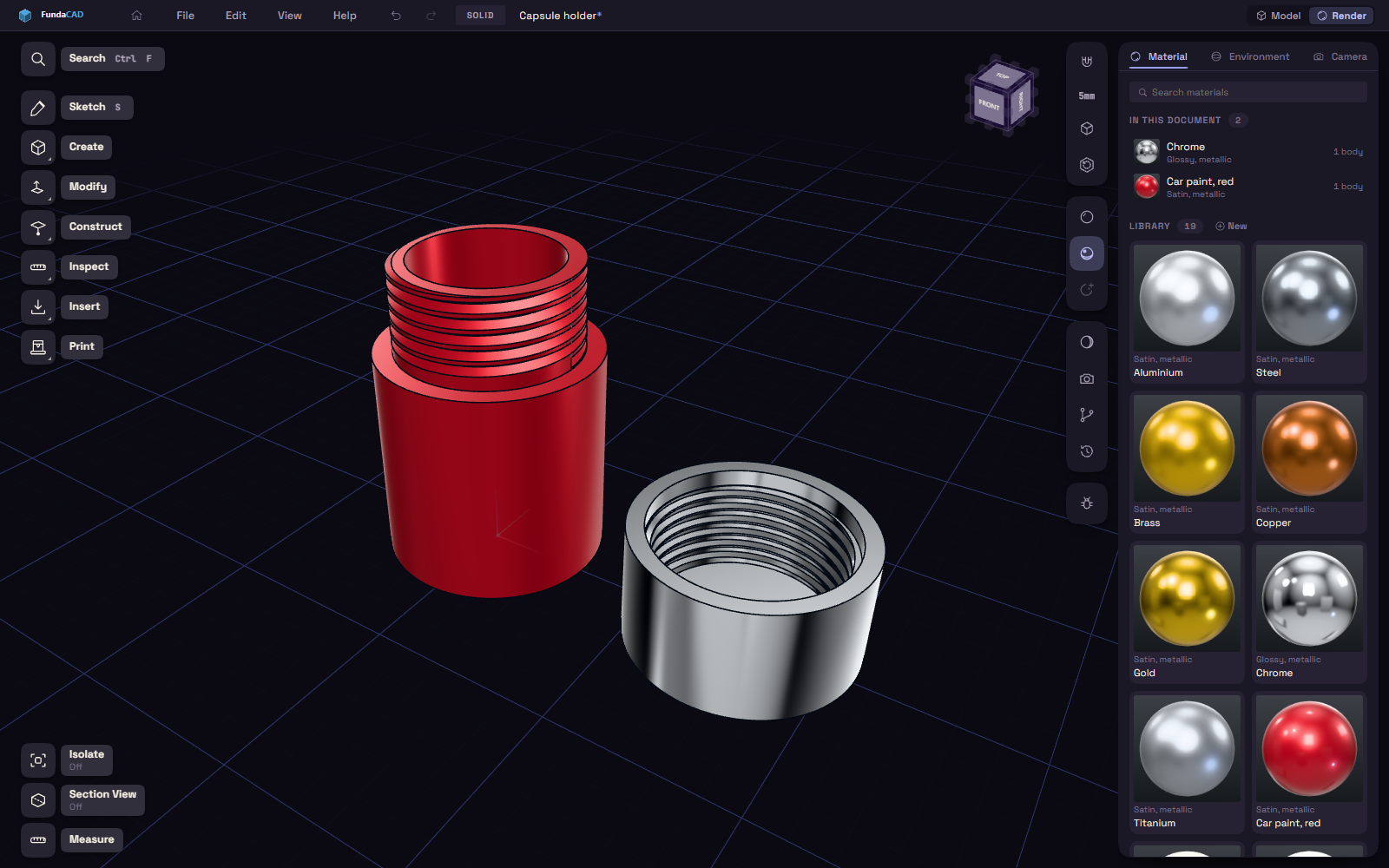
Open the Render workspace
Pick Render on the Model and Render switch in the title bar, or Materials under Inspect. Its panel has three tabs: Material, Environment and Camera. Materials can only be changed here.
Put a material on a part
- Select the bodies or faces in the model.
- Click a tile in the Library. The panel below previews it, the model does not change yet.
- Double-click the tile, or press the Apply button, to use it. It names what it dresses, such as Apply to 1 body.
You can also drag a tile straight onto the model. Dropping on a face dresses only that face, hold Shift while you drop to dress the whole body.
Clear takes the material off the selection. The tile the selection wears has an Applied badge.
Keep the library tidy
- In this document lists the materials the model wears, with how many bodies and faces wear each.
- Search materials filters the tiles by name.
- New adds a copy of the selected material for you to change.
- Ctrl or Shift click picks several tiles, then Remove from the model, Delete or Deselect.
- Right-click a tile to apply it, Duplicate, Remove from the model or Delete it, Del deletes too. Whatever wore a deleted material goes back to the default grey.
- Import… and Export… at the bottom share a material library file between documents.